This chapter contains the following sections:
VPN Server and Client
VPN (Virtual Private Network) can encrypt your network connection to ensure the safe transfer of important data and avoid information stealing. Remote users (VPN clients) can safely connect VPN server.
VPN Server Configuration
Open VPN Server Configuration
OpenVPN Server is used for remote devices to establish an OpenVPN connection to access your home network. If you use VPN function, you need to enable the OpenVPN server on a router and then install and run VPN client apps on remote devices.
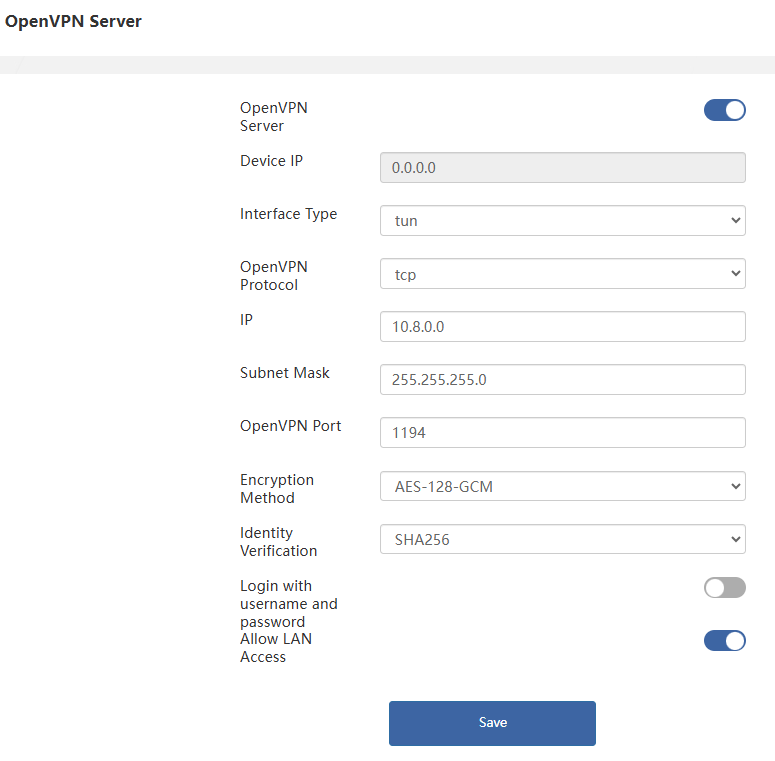
- Access Advanced>OpenVPN Server.
- Open OpenVPN Server.
- Select Interface Type and OpenVPN Protocol.
- Input the OpenVPN Port, which should be from 1024-65535.
- In IP and Subnet Mask, enter the range of IP addresses the OpenVPN server can lease to devices.
- Select Encryption Method and Identity Verification type.
- Click Save.
VPN Client Configuration
VPN client can establish VPN connection for devices in your home network to access remote a VPN server.
PPTP/L2TP VPN Client Configuration
VPN converts public networks (Internet, etc.) into private networks using encryption technology to offer greater security and privacy protection.
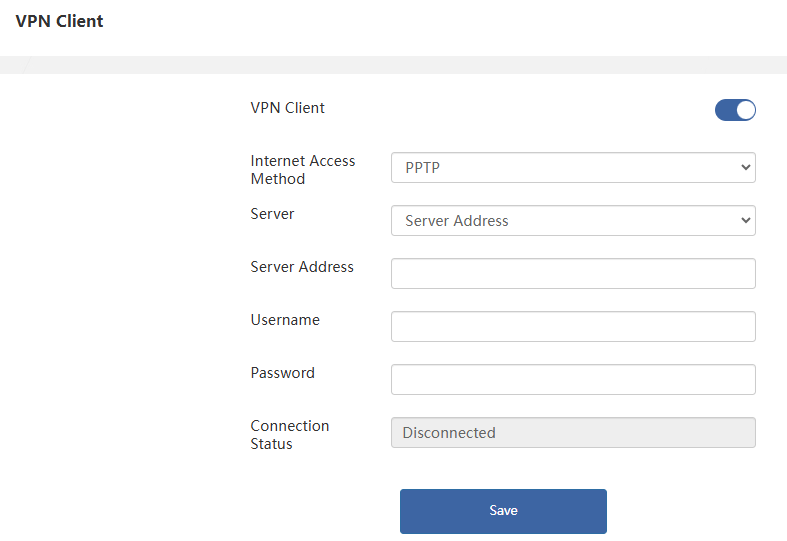
- Access Advanced>VPN Client.
- Open VPN Client.
- Select Internet Access Method.
- Select server domain or server address in Server, then enter corresponding parameter in Server Address.
- Click SAVE to finish the configuration.
OpenVPN Client Configuration
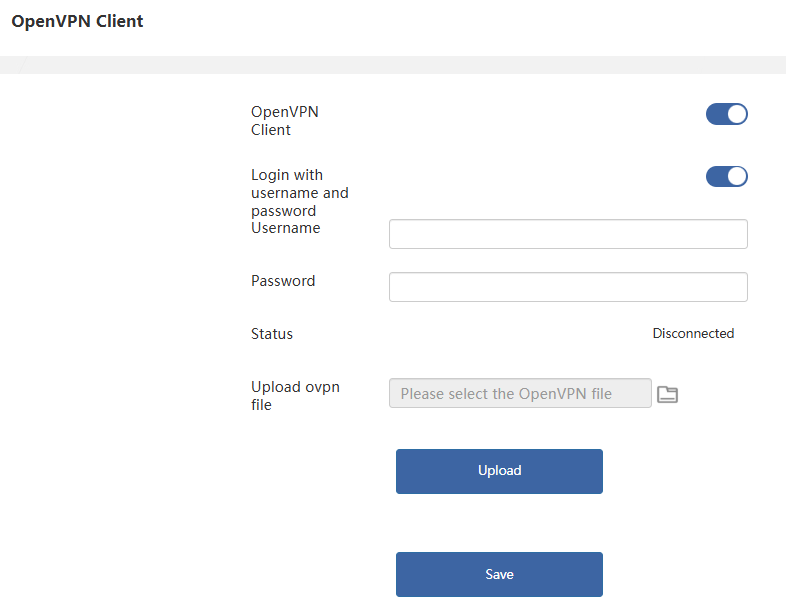
- Access Advanced>OpenVPN Client.
- Click to start OpenVPN Client.
- If the OpenVPN Server has set a login user and password, the OpenVPN Client must also configure a login user and password. Make sure to fill in the OpenVPN Server login user and password correctly, otherwise the connection will be affected.
- Click File icon to select the correct OpenVPN Server configuration file. After selecting, click Upload, then click Save and wait for the application to be updated.
ZeroTier Configuration

- Access Advanced>ZeroTier.
- Open ZeroTier.
- Enter Network ID obtained on the Zerotier manage page.
- Click SAVE to finish the configuration.